

Accounting
Fincas keeps a double-entry ledger that fills itself from your documents: invoices, payments, refunds and goods receipts post journal entries as they happen. This page is for whoever keeps the books: reading the ledger, closing periods, reconciling and correcting.
Before you start:
- You need a staff login. The pages are under Finance in the sidebar: Accounting, Trial Balance, Journal Entries and Accounting Import. Periods and Reconciliation are buttons on the Accounting page.
- Most of the back office’s accounting pages are for reading. Setting up the chart of accounts, posting rules and fiscal periods, and writing manual entries, happens outside these pages (see each section below), usually by whoever runs your Fincas.
How documents post to the ledger
Section titled “How documents post to the ledger”Every automatic entry goes through one set of checks: debits must equal credits, every account must belong to the company, and the entry’s date must not fall in a closed fiscal period. A document that fails a check is refused and nothing is saved. Fincas never guesses an account.
| Document | When it posts | Entry |
|---|---|---|
| Sales invoice | When it leaves Draft (for example when you email it) | Debit accounts receivable for the total. Credit revenue, sales tax and shipping income. Any discount is debited to the discount account. Dated with the invoice date. A $0 invoice posts nothing. |
| Sales invoice voided or canceled | When it moves to Void or Canceled after posting | An exact reversing entry, dated today. The original stays. |
| Payment | When it becomes captured or settled (for example Record Payment on an invoice) | Debit cash (net of any processing fee) and the fee account. Credit accounts receivable. Dated with the payment date. |
| Refund | When it is recorded | The mirror of a payment: debit accounts receivable, credit cash. |
| Goods receipt | When you click Receive on a purchase order | Debit inventory, credit accounts payable, at the line cost. Landed cost (shipping and other charges spread over the lines) posts as a second entry. Dated today. |
Some things post nothing:
- shipping an order, or any stock movement (there is no cost-of-goods-sold entry),
- creating or editing quotes, orders and purchase orders,
- changing a purchase order’s status by hand.
In Journal Entries, the Source column names where each entry came from: Sales Order (invoices), Payment, Refund, Purchase (goods receipts), Landed Cost, QBO Import, Manual or System (reversals and opening balances).
Where posting rules live
Section titled “Where posting rules live”Which accounts each document uses is set by a posting rule per document type: Sales
Invoice, Payment, Refund and Purchase Receipt. There is no back-office screen for
them. Whoever runs your Fincas sets them with manage.py posting_rules:
manage.py posting_rules showmanage.py posting_rules set --doc-type payment --receivable 1200 --cash 1010manage.py posting_rules set-provider --provider paypal --cash "PayPal Account"Accounts are named by account number or full name. set-provider points payments taken
through one payment provider at their own cash (and fee) account. If a rule is missing, the
document that needs it is refused with “No posting rule for …”.
Read the books
Section titled “Read the books”- Open Finance → Accounting. The cards show Total Debits, Total Credits, a Balance Check (In balance when debits equal credits), the number of Accounts and the date range of the entries.
- Balances by classification totals every account by type: Asset, Liability, Equity, Income and Expense, each with its normal side (DR or CR).
- Entries by source counts entries per source. Click Browse journal entries to see them.
- Most recent entries lists the last ten. Click a number to open an entry and its lines.
Draft and void entries are left out of every balance on these pages.
Run a trial balance
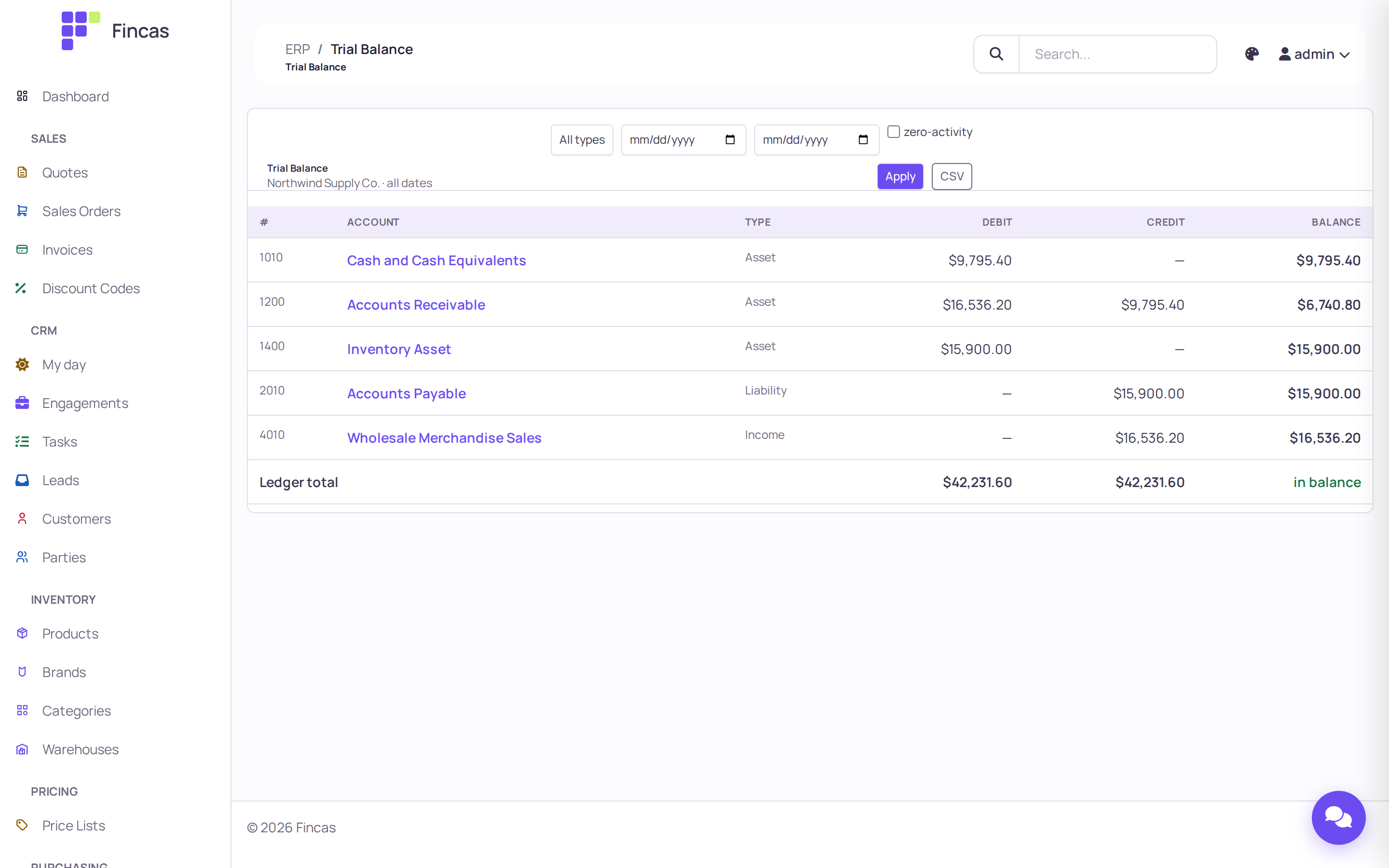
Section titled “Run a trial balance”- Open Finance → Trial Balance.
- Narrow it if you need to: an account type (All types, Asset, Liability, Equity, Income, Expense), a From and To date, and zero-activity to include accounts with no entries. Click Apply.
- Read Debit, Credit and Balance per account. The Ledger total row shows the totals and whether they are in balance. The total always covers every account in the date range, even when you filter by type.
- Click an account name to open its register: every line in date order with a running balance. With a From date, the register starts from the balance brought forward.
- Click CSV to download the trial balance with the same filters.
See the chart of accounts
Section titled “See the chart of accounts”The back office has no chart-of-accounts editor. To see every account, open Trial Balance and tick zero-activity. Accounts come from one of:
- Finance → Accounting Import, which loads a chart of accounts exported from QuickBooks Online (see below),
- the Django admin at
/admin/, for users your deployment allows there, - your deployment’s setup (the demo data seeds a small chart).
Don’t reuse an account for a new meaning: history stays on the account, and reports would mix the two.
Import books from QuickBooks Online
Section titled “Import books from QuickBooks Online”- Open Finance → Accounting Import.
- Pick the Company. Accounts and entries belong to one company, and the wrong one corrupts the books.
- Choose a Chart of accounts file, a Transactions file (Journal or Transaction Detail
export), or both. Accepted:
.csv,.xlsx,.xlsm. Legacy.xlsis refused; re-export it. - Tick Read slash dates as DD/MM/YYYY only for exports in day-first format.
- Leave Dry run ticked for the first run and click Run import. The report shows exactly what would be written, and nothing is saved.
- When the report looks right, untick Dry run and run it again.
Running the same file again updates entries in place instead of duplicating them. A transaction whose debits and credits don’t agree is skipped and listed in the report. Opening balances in the export are kept for reference but not posted.
Close a fiscal period
Section titled “Close a fiscal period”A fiscal period is a date range (a month, a quarter) that can be Open, Closed or Locked. Closing one stops anything being posted with a date inside it.
Periods are created in the Django admin or through the API (/api/v1/accounting/periods/).
Until a period covers a date, postings on that date are never blocked.
- Open Finance → Accounting and click Periods.
- Check the Drafts column. A period with draft journal entries in its range can’t be closed. Post or void those entries first.
- Click Close period on the period and confirm.
To reopen a Closed period, click Reopen on the Periods page. A Locked period is year-end final and can’t be reopened; a correction for it belongs in the next open period.
Reconcile the ledger with the documents
Section titled “Reconcile the ledger with the documents”- Open Finance → Accounting and click Reconciliation.
- Read Out-of-balance entries. It should be 0. Anything else is a journal entry whose debits and credits don’t match.
- For each control account, compare GL Balance (the ledger) with Subledger (the
documents) and look at the Difference:
- Accounts Receivable: open invoice balances.
- Cash: settled payments net of refunds, across every cash account the payment rule and provider overrides name.
- Accounts Payable: received goods plus landed cost. Fincas doesn’t track supplier payments, so this is what you owe before paying suppliers.
- Click CSV to download the table.
The figures are all-time. Picking a period in the dropdown only flags whether that period is frozen; it doesn’t filter the balances.
Correct a posted entry
Section titled “Correct a posted entry”Posted entries are never edited. A correction is always a new entry.
- A document was wrong. Fix it at the source. Voiding or canceling an invoice posts a reversing entry automatically, and refunds post their own entries. The invoice page in the back office has no void button, so voiding happens through the API or the admin.
- Anything else (an accrual, a reclassification, an opening balance) is a manual journal entry. The back office can’t create them. Your deployment’s admins write them in the Django admin, which refuses an entry whose lines don’t balance, uses accounts of another company, or falls in a closed period. Write the reason in the memo.
Reports
Section titled “Reports”Open Reporting → Reports for the business reports. Each has a period (Today, This Week, This Month, This Quarter, This Year), a CSV download and a “How these numbers are calculated” note under the table.
- Sales Summary: revenue, order count and average order value for orders created in the period, any status, with the top 10 customers.
- Order Status Pipeline: orders created in the period, counted by current status.
- Inventory Levels: on hand, reserved and available per SKU per warehouse, and low-stock alerts (see Inventory and purchasing).
- Quote Conversion: how quotes started in the period turned out.
- Accounts Receivable: unpaid and partly paid orders and their balance due. This report reads orders, not the ledger.
The CRM reports (Funnel by Source, Stage Duration, Follow-up Completion, Multi-touch Attribution) are covered in Working the CRM.
Check your work
Section titled “Check your work”- Accounting shows In balance, and the Trial Balance’s Ledger total says in balance.
- Reconciliation shows 0 out-of-balance entries and no unexplained differences.
- Every invoice you sent, payment you recorded and delivery you received has an entry in
Journal Entries (search by its number, for example
INV-00082orREC-00003). - Periods shows past periods as Closed with no drafts.
If something goes wrong
Section titled “If something goes wrong”“… is dated …, in fiscal period …, which is closed: nothing was posted.” The document’s date falls in a closed period. Reopen the period under Accounting → Periods, or date the document in an open one.
“No posting rule for … at …” The company has no posting rule for that document type. The
document wasn’t saved. Ask whoever runs your Fincas to add it with manage.py posting_rules set.
“Cannot close …: … draft entries overlap it.” Draft journal entries sit inside the period. Post or void them, then close again.
“Cannot reopen …: LOCKED periods are year-end final.” Put the correction in the next open period instead.
Reconciliation says “Reconciliation is not configured: …”. The page needs posting rules for sales invoices, payments and purchase receipts before it can compare anything.
Accounting shows “Out of balance” or a nonzero Out-of-balance entries count. An entry’s debits and credits differ, usually from an import or a hand edit outside Fincas. Click Review in journal on Reconciliation to find it, and correct it with a new balancing entry.