

Working the CRM
The CRM is where sales staff track deals (called engagements), the tasks that move them forward, and the people and organizations they deal with. Everything here lives under CRM in the back-office sidebar: My day, Engagements, Tasks, Leads, Customers and Parties.
Before you start:
- You need a staff login to the back office (
/erp/). - Your login needs a staff profile in your company. Without one, My day is empty and you can’t create engagements, tasks or leads.
- A few actions need an extra permission, which an administrator grants: reopening a closed engagement, merging parties, erasing a person, changing someone else’s engagement owner, and applying CRM imports. Each one is noted below.
Plan your day
Section titled “Plan your day”CRM → My day lists your own open tasks and your own engagements. It uses your time zone, which is shown next to the date.
- Overdue: your tasks whose due time has passed.
- Today: your tasks due before the end of your day.
- Needs a next action: open engagements you own that have no open task.
If all three are empty, the page says “All clear”. All my tasks opens the full task list.
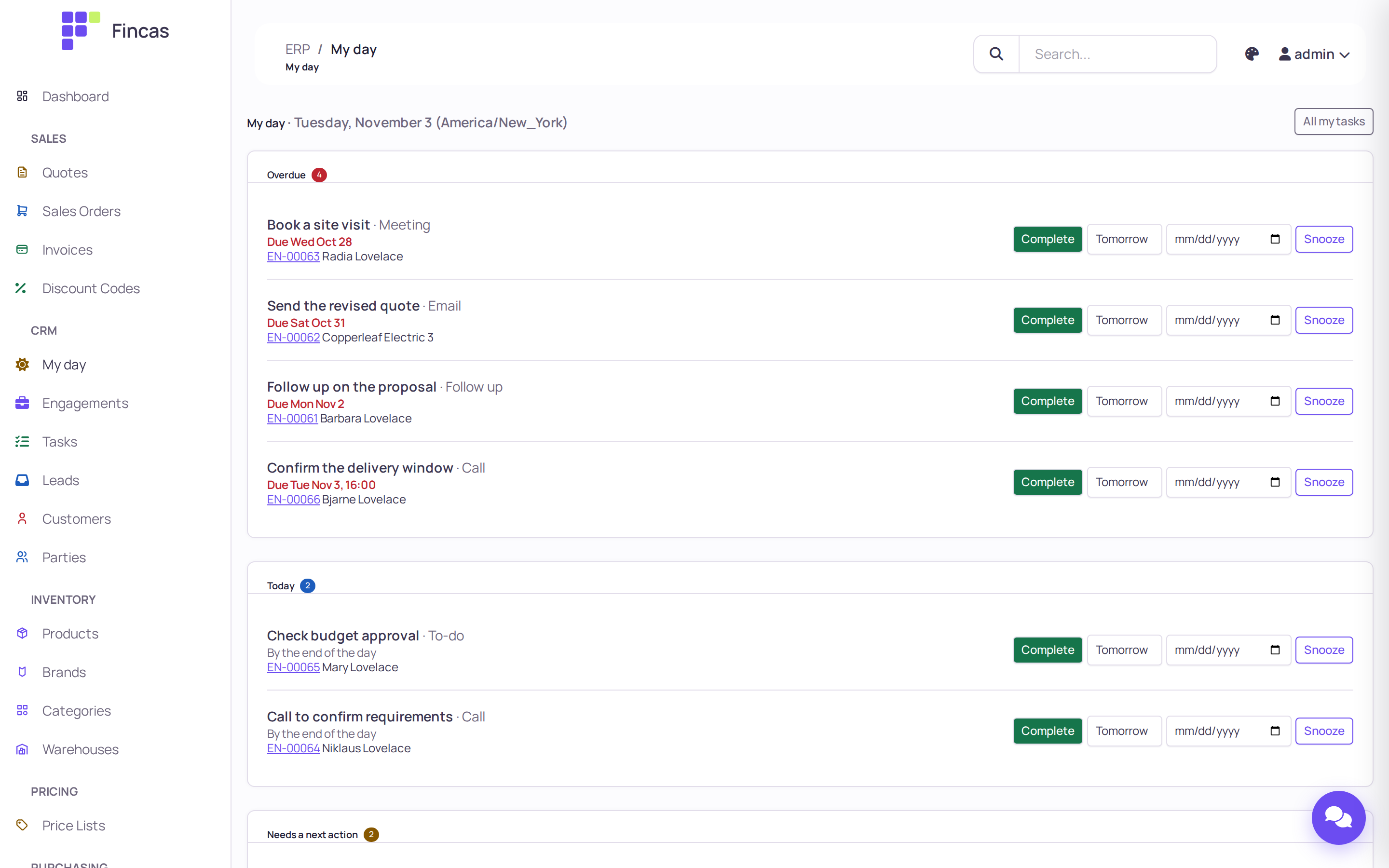
- To finish a task, click Complete. You stay on My day, and the task drops off the list.
- To push a task back, pick Tomorrow, Next week or Pick a date in the menu next to it. For Pick a date, also choose the date. Then click Snooze. Next week means the coming Monday. A snoozed task is due by the end of that day.
- For an engagement under Needs a next action, click Set next action. This opens the engagement at its next-action form (see below).
Create an engagement
Section titled “Create an engagement”An engagement is one deal or inquiry with one counterparty: a person or an organization. Its
number looks like EN-00071.
- Open CRM → Engagements and click New engagement.
- Fill in the form:
- Title: leave it blank to use the counterparty’s name and the source.
- Counterparty: type an email address or a name and pick the party. If the party doesn’t exist yet, use New counterparty (it opens in a new tab). If you leave it blank, the engagement goes to the No counterparty queue.
- Pipeline, Owner, Expected value (blank means unknown, not zero), Currency, Probability (blank uses the stage’s default), Expected close date, Source and Tags (comma separated).
- Click Save. The engagement opens with the message “Created EN-… Set its next action.”
You can’t set the stage or the outcome on this form. Those change from the engagement page. To change the facts later, click Edit on the engagement. You can also start an engagement from a party’s page: under Next actions, click Engagement.
Set the next action
Section titled “Set the next action”Every open engagement should have exactly one thing planned next. Fincas treats the open task that is due soonest as the engagement’s next action. If an engagement has no open task, its card is outlined and titled No next action.
- Open the engagement.
- In the No next action card, fill in What, Due, Who, Kind (To-do, Call, Email, Meeting, Follow up), At (optional) and Priority.
- Click Set next action.
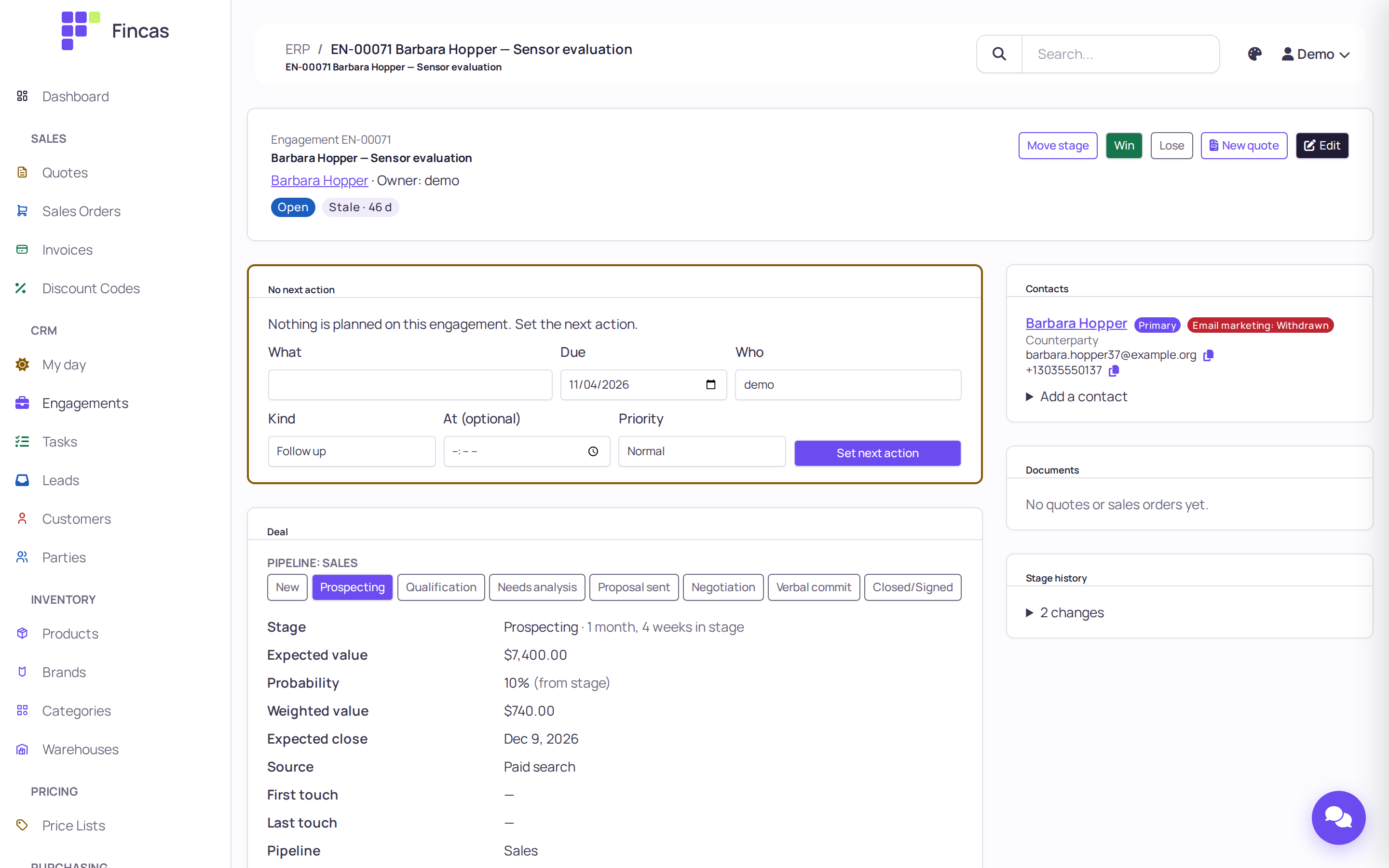
When a next action exists, the card shows it with Complete, Reschedule and Reassign controls. Any other open tasks are listed under Also open. When you click Complete here, the page reloads with “Completed: (task). What’s next?”, so you can plan the next step right away.
Log a call, email, meeting or note
Section titled “Log a call, email, meeting or note”- On the engagement, in the Timeline card, open Log a call, meeting, email or note here or click Log a communication.
- Choose the Kind (Email, SMS, Call, Meeting, LinkedIn message, Note), the Direction (Outbound, Inbound or Internal), When, a Subject, an optional Duration (minutes) and Notes. Tick the Participants it involved.
- To plan the follow-up at the same time, fill in And add a task (optional).
- Click Log it.
Logging a communication updates the engagement’s last activity, which is what decides whether it counts as stale. The timeline’s buttons (All, Emails, Calls, Meetings, Notes, Tasks, Stage, Documents) narrow what it shows.
Move an engagement through the pipeline
Section titled “Move an engagement through the pipeline”The Deal card shows the pipeline’s stages as a row of buttons, with the current stage highlighted. Move stage in the header jumps to this card.
- Click the stage the engagement is now at. You see “Moved to (stage).”
- If the pipeline marks that stage as a closing stage, Fincas does not close the engagement for you. It opens Close this engagement with a note that the stage proposes a win or a loss. Confirm it there, or leave the engagement open.
- If your company has more than one pipeline, use Move to another pipeline under the stages and click Move.
Each move is recorded. Open Stage history in the side column to see every change with its date, or filter the timeline to Stage. The Stale badge (for example “Stale · 46 d”) means nothing has happened on the engagement for longer than its stage allows. Administrators set the pipelines, stages, default probabilities and stale limits under Admin → Pipelines.
Win or lose an engagement
Section titled “Win or lose an engagement”- To record a win, click Win in the header, or Mark as won under Close this engagement.
- To record a loss, click Lose. The Close this engagement section opens. Pick a Loss reason (for example Price, Lost to a competitor, Timing, No budget, Disqualified, Duplicate), optionally name the Competitor and add Notes, then click Mark as lost. A loss without a reason is refused: “Not closed: pick a loss reason.”
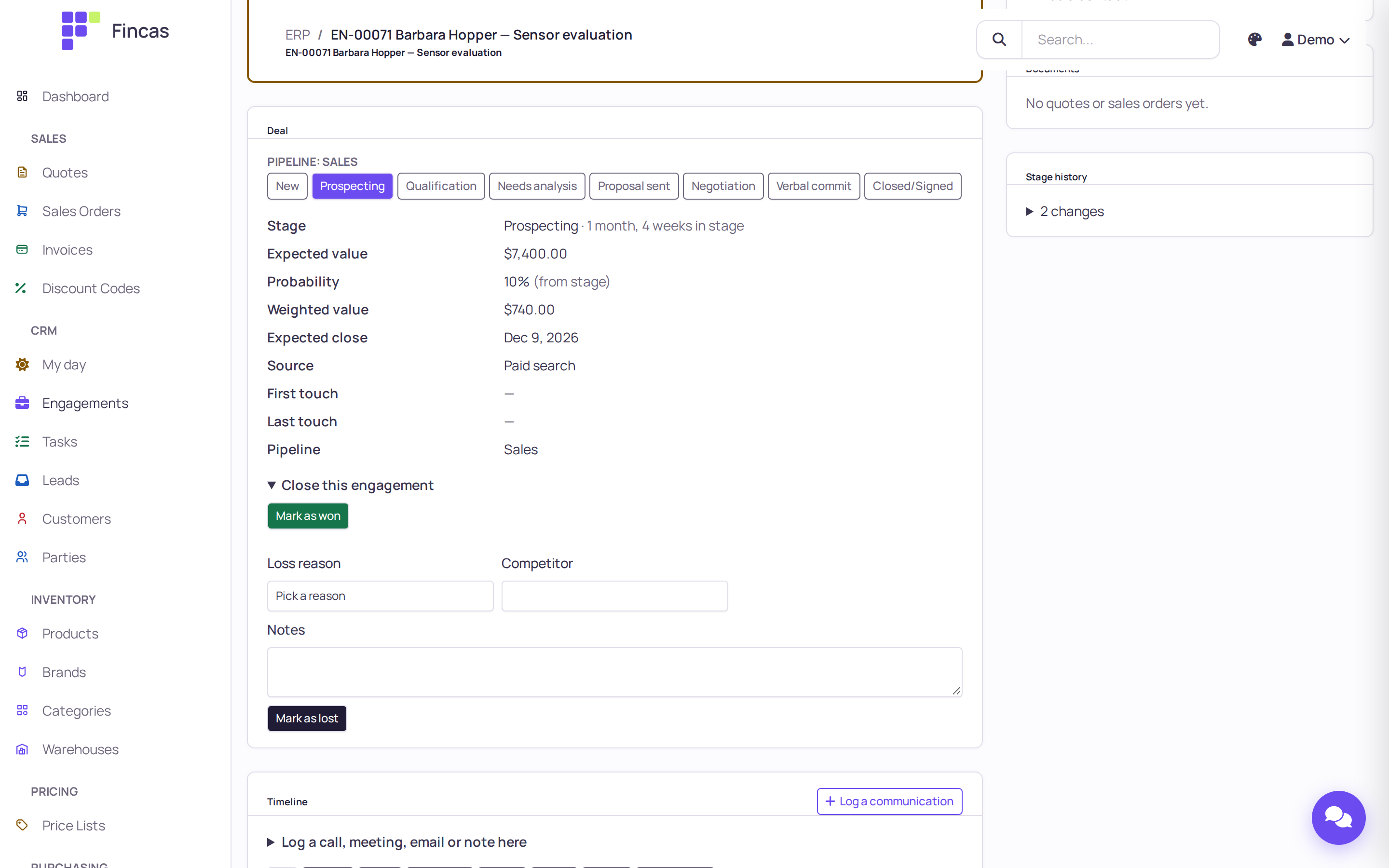
Closing an engagement does not close its tasks. A closed engagement that still has open tasks lists them, and you can Complete each one or click Close remaining to cancel them all. If a won engagement still has open quotes, a banner lists them. Fincas does not cancel them for you.
Reopen an engagement
Section titled “Reopen an engagement”This needs the Can reopen a won or lost engagement permission. Without it, a closed engagement has no Reopen control.
- Open the closed engagement.
- In the header, choose where to reopen it: Where it was, or a specific stage.
- Click Reopen.
Start a quote from an engagement
Section titled “Start a quote from an engagement”- On the engagement, click New quote.
- The new quote is already linked to the engagement. If the counterparty has a customer account, it is filled in as the Customer. If not (for example, the deal started as a lead), pick or create the customer on the quote.
- Build and save the quote as usual: see Quotes, orders and invoices.
The engagement’s Documents card then lists the quote, and later the orders and invoices that come from it. New quote is not offered on a lost engagement.
Find engagements: views, filters and saved views
Section titled “Find engagements: views, filters and saved views”The Engagements list opens on Mine. The buttons above the table are built-in views:
| View | Shows |
|---|---|
| Mine | Open engagements you own. |
| Unassigned | Open engagements with no owner. |
| Needs next action | Open engagements with no next action, an overdue next action, no counterparty, no owner, or an archived owner. |
| Overdue | Open engagements whose next action is past due. |
| Stale | Open engagements with no activity for longer than their stage allows. |
| No counterparty | Open engagements not linked to a party. |
| All open | Every open engagement. |
| Closed this month | Engagements won or lost since the first of this month. |
Narrow any view with Stage, Owner and Source, then click Apply. Column headers such as Engagement, Stage, Next action, Value and Last activity sort the list.
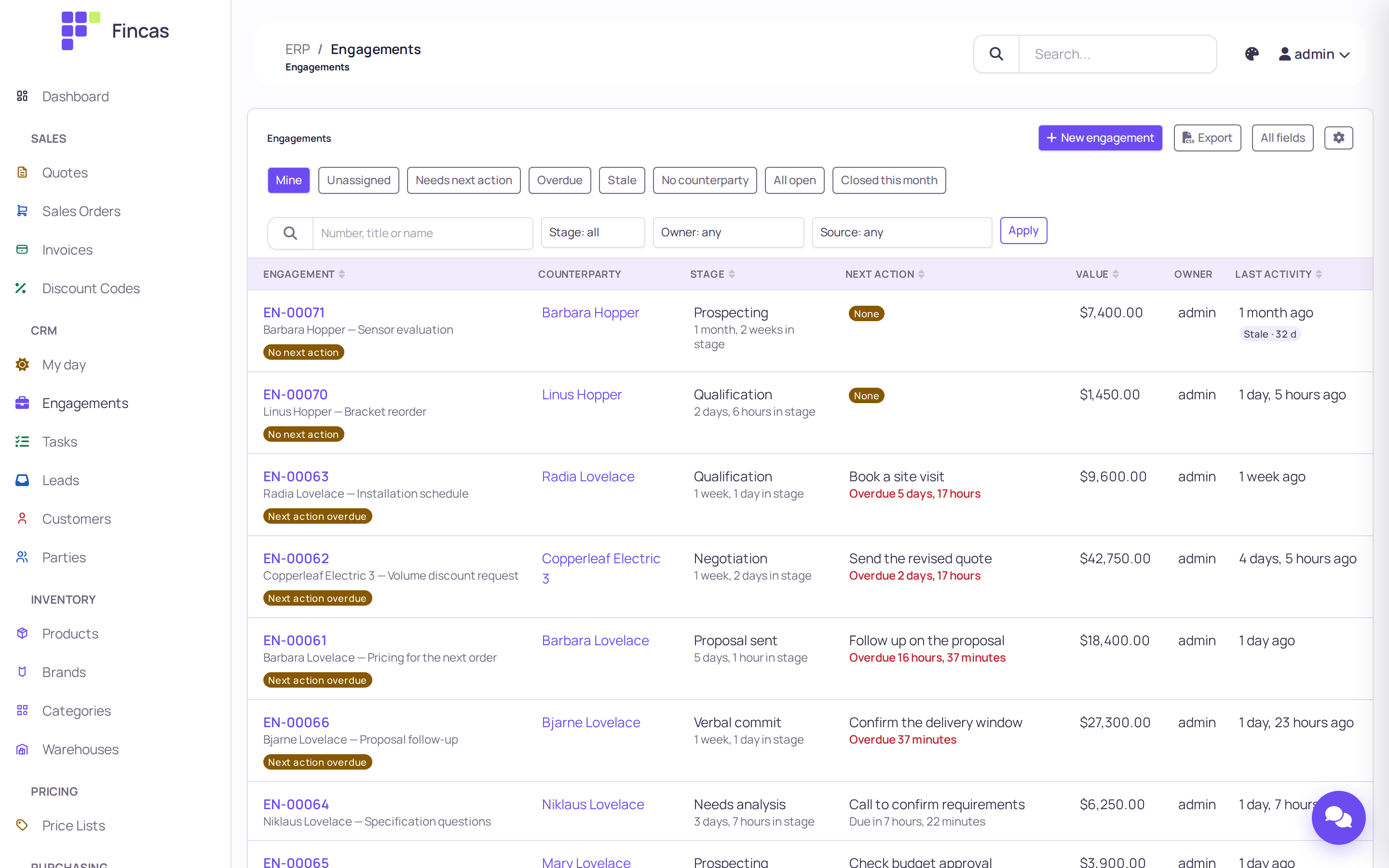
To keep a filter you use often:
- Apply the filters you want. Save this view appears above the table.
- Click Save this view, give it a name, and choose Only me or Everyone in my company.
- Click Save. It now appears under Saved filters. The × next to a filter you own deletes it.
In Needs next action, you can tick engagements and use the bulk panel: Assign owner, Add a “Follow up” task due tomorrow, or Close as lost (with a loss reason). Then click Apply to selected. Changing the owner of an engagement someone else owns needs the Can change another user’s engagement owner permission. Engagements you can’t change are skipped and counted in the message.
Export downloads the current list as CSV. All fields includes every column.
Work the task list
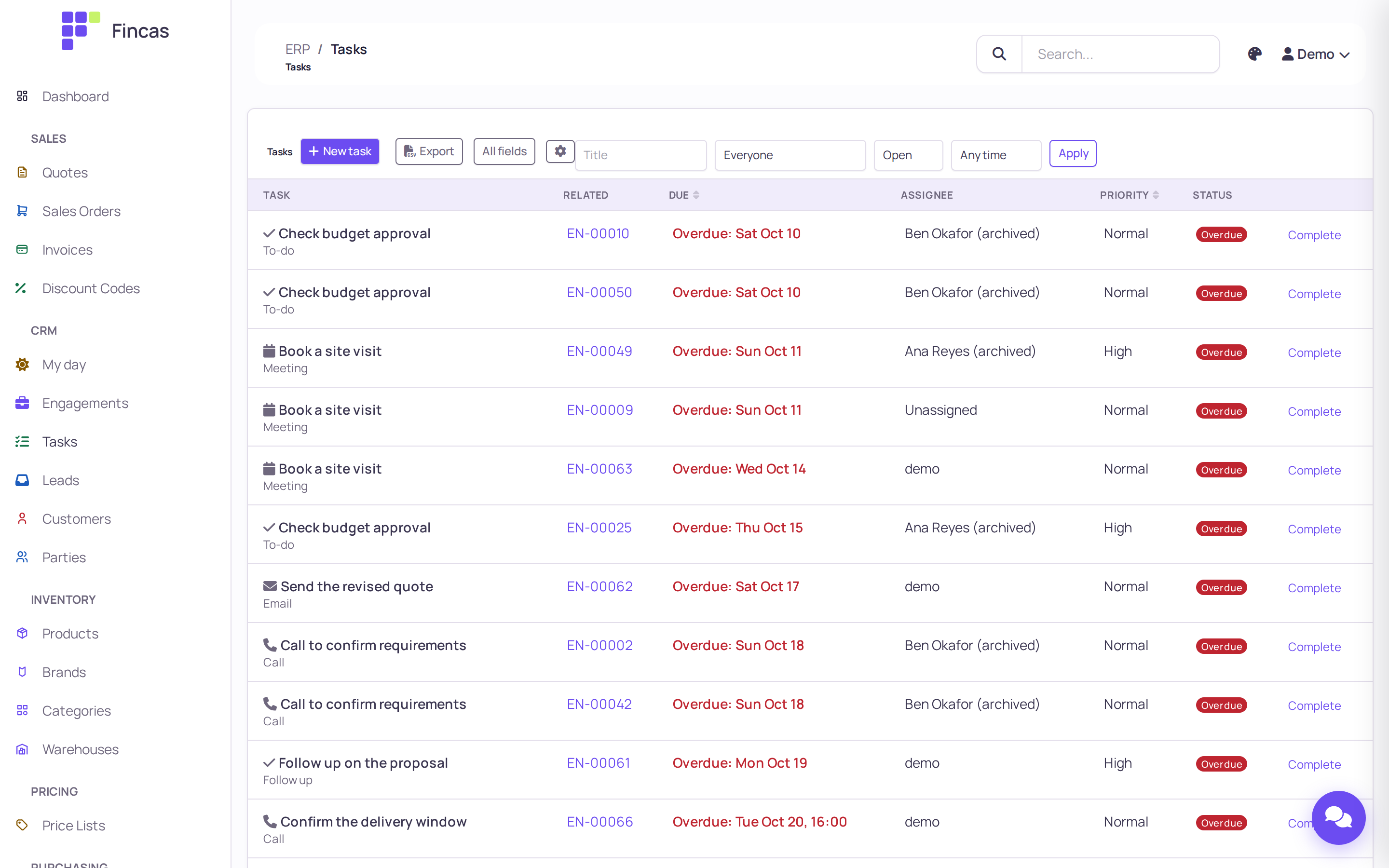
Section titled “Work the task list”CRM → Tasks lists tasks across the company. It starts with everyone’s open tasks.
- Filter by assignee (Mine, Unassigned, Everyone or a person), status (Open, Done, Canceled, All) and due date (Any time, Overdue, Due today, Due this week), then click Apply.
- Complete on a row finishes the task.
- New task adds a task with What, Kind, Due, At (blank means due by the end of the day), Who and Priority. Under Related to, link it to an Engagement, a Counterparty, both or neither. If you pick an engagement and leave the counterparty blank, the task uses the engagement’s counterparty.
Handle leads
Section titled “Handle leads”A lead is an inquiry as it arrived: who asked, how to reach them, what they asked about and where they came from. CRM → Leads is the intake log. You don’t work a lead itself. The work happens on the engagement the lead opens.
Leads come in three ways:
- Website forms. A contact or quote-request form on your website can send inquiries to Fincas through the API. Your developers set this up: see API and integrations. The bundled storefront does not include such a form.
- Typed in by staff. Click New lead on the Leads page (for example, after a phone call).
- Imports from another CRM (see below).
When a lead is saved, Fincas runs intake:
- It matches the person to an existing party, or adds them as a new one.
- Unless the Request type is Support, the lead joins that party’s open engagement or opens a new one. A new engagement gets an open “Respond to inquiry” task, so it shows up in someone’s My day.
- The lead’s message is added to the engagement’s timeline as a note.
To add a lead by hand:
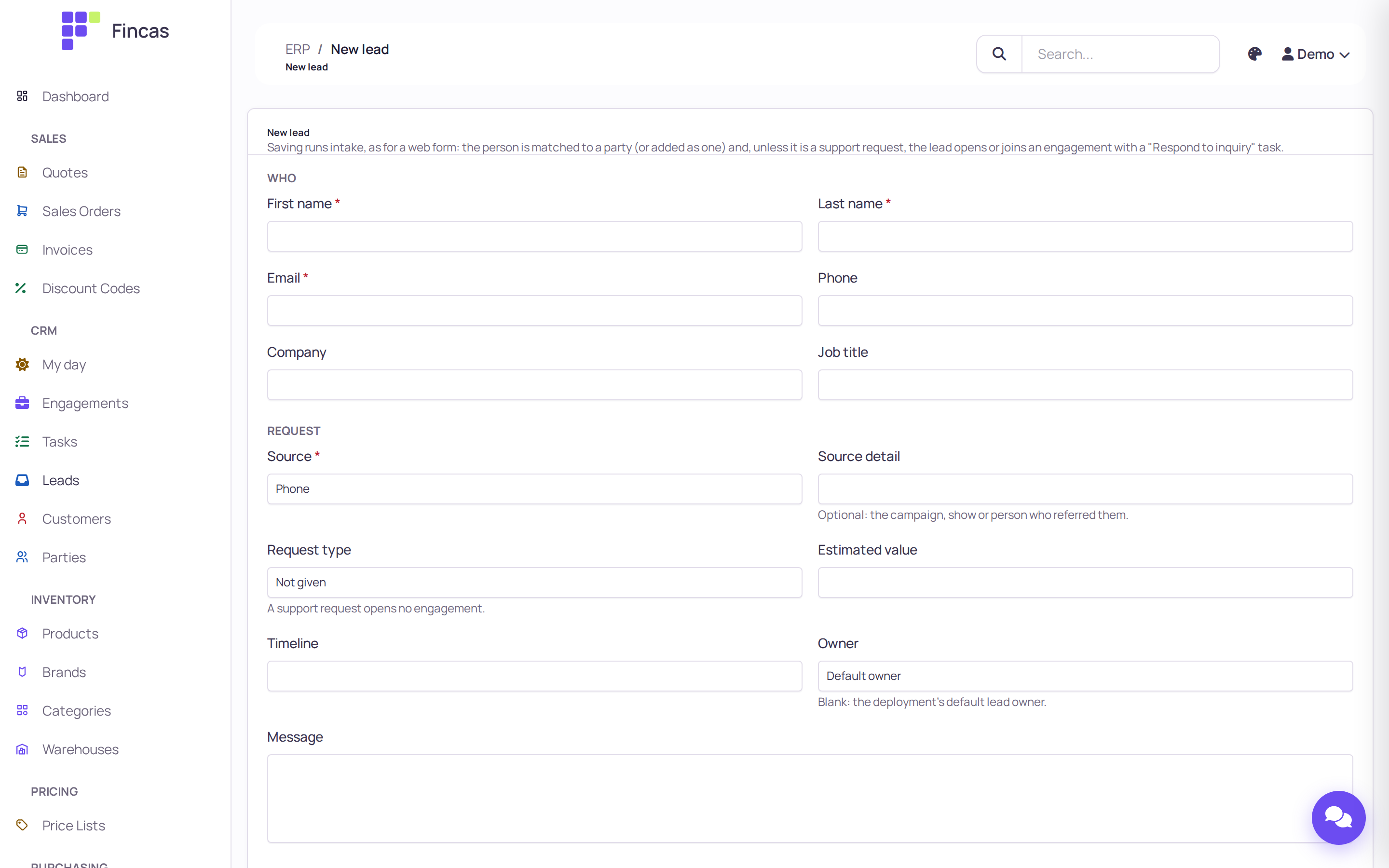
- Open CRM → Leads and click New lead.
- Fill in First name, Last name, Email, Source and Country (a two-letter code). These are required. Add the phone, company, request type, estimated value, message and anything else you know. Leave Owner on Default owner to use your deployment’s default lead owner.
- Click Save. If the lead opened or joined an engagement, you land on that engagement’s next action. A support request goes back to the Leads list.
The Leads list shows each lead’s Engagement and a Status taken from it (Open with its stage, Won, Lost, Support or No engagement). Filter it by Source and Request.
Customers and parties
Section titled “Customers and parties”Fincas keeps two related kinds of record:
- A party is a person or an organization: one record for each real one. It holds the contact points (emails, phones, addresses), roles, relationships, consent, engagements and the timeline. CRM → Parties lists them all.
- A customer is a buying account: what quotes, orders and invoices are made out to. It carries commercial settings such as the customer type (Individual or Business), pricing tier, tax exemption, default price list and sales defaults. CRM → Customers lists them.
Every customer belongs to a party. A business customer belongs to the organization’s party, and the person you deal with is related to it (for example, “Employs”). The customer page has an Open party link. Not every party is a customer: a person who has only made an inquiry is a party with an engagement and no customer account. Saving a customer keeps its party up to date.
Search before you create. Duplicates are the most expensive CRM mistake. Search the Parties list by name and email before you click New Party, and pick existing parties in the counterparty fields instead of creating new ones.
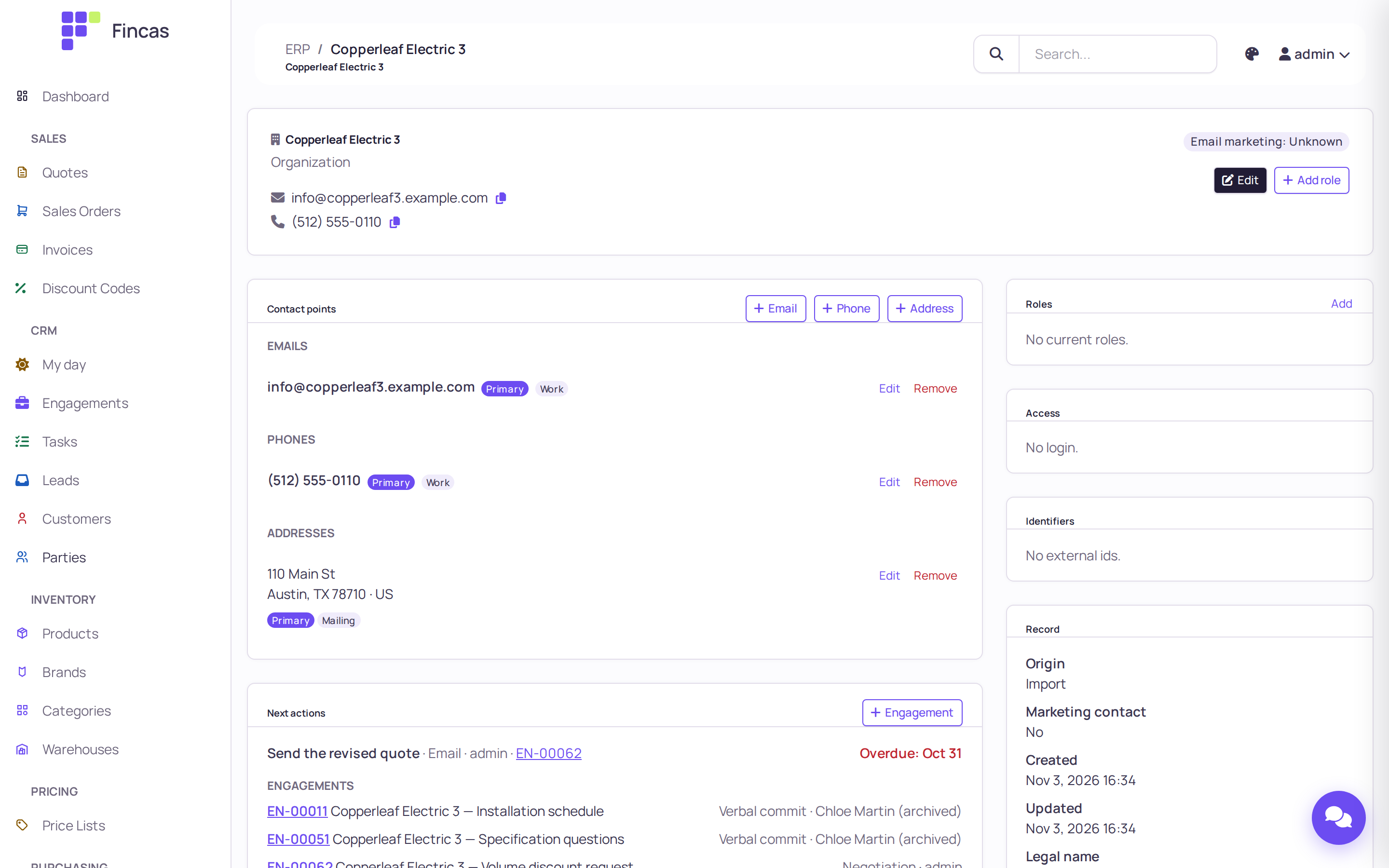
On a party’s page:
- Contact points: click Email, Phone or Address to add one. Edit and Remove sit next to each. One of each kind is marked Primary.
- Roles say what the party is to your business. Click Add role (or Add in the Roles card) to add Supplier, Partner, Referral source or Client, with a From date and an optional Until date. The Customer, Lead and Staff roles are managed by Fincas itself and can’t be added by hand.
- Relationships link people and organizations, such as who works where. Click Relationship to add one.
- Next actions and Engagements show the party’s open tasks and deals.
The Parties list filters by Kind, Role, Owner, Lifecycle, Team, Customer account, Marketable and Email marketing consent. Merged and erased parties are hidden unless you click Show merged and erased.
Record consent
Section titled “Record consent”- On the party’s page, in the Consent card, click Record consent.
- Choose the Channel (Email, SMS, Phone, Post), the Purpose (Marketing or Transactional) and the State (Granted or Withdrawn).
- In Address, enter the email address or phone number it applies to, or leave it blank to cover every address of this party on that channel.
- Enter When the person decided and, in Source detail, where it came from (for example a phone call or a signed form).
- Click Save.
The newest record for each channel and purpose is the one in force. Older ones stay under History. A party with no consent record may not be marketed to. The party header and the engagement’s contacts show the email marketing state (for example “Email marketing: Withdrawn”). Counts as a marketing contact on the party form is not consent.
Find and merge duplicates
Section titled “Find and merge duplicates”This needs the Can merge and unmerge parties permission. With it, the Parties list has a
Duplicates button. Any staff user can open the review queue at /erp/parties/merge-review/
and look, but can’t act on it.
- Open Parties and click Duplicates.
- Click Scan now to look for likely duplicates. Each group (“cluster”) shows its confidence, the evidence (for example a shared email), and a side-by-side table with differing values in bold.
- Choose which party to keep with Keep followed by the party’s name. Under Values that differ: keep, pick whose value wins for each field. The default is the survivor’s.
- Click Merge to approve the cluster, or Not a duplicate to dismiss it for good. Skip moves on to the next cluster.
- Approving does not merge yet. Click Apply approved (n) at the top to carry out the approved merges. Large runs apply in chunks: Apply next chunk, or Cancel (merges already done stay done).
To speed up the high-confidence ones, tick clusters and click Approve selected. Only clusters at 0.95 or above with no flag and no block can be selected. Narrow the queue by state, confidence band and Needs individual review.
Some clusters show Cannot be merged here: for example, two parties that each hold a commerce account login, two parties with different logins, or your own organization. Fix the cause first (the message says what), then scan again.
To undo: under Recent merges, click Undo next to a merge, or Undo last run for a whole run. The parties come back exactly as they were, and the cluster returns to the queue for a new decision. If an undo is refused, the message says why (for example, a newer merge into the same survivor must be undone first).
Erase a person’s personal data
Section titled “Erase a person’s personal data”Use this for a data-erasure request. It needs the Can erase a party’s personal data permission. With it, a person’s page has a Danger zone card at the bottom.
- Open the person’s party page and scroll to Danger zone.
- Open Erase personal data….
- Type the party’s name exactly as shown, to confirm.
- Enter a Reason. It is kept in the audit log, so it must not repeat the person’s name, address or number.
- Click Erase permanently.
Fincas refuses erasure for organizations (erase the people related to them instead), for your own organization, for staff (close their staff role and offboard their login first), and for a party that is already erased. The refusal starts “Not erased:” and gives the reason. Afterwards the page says “Erased on (date)”.
Import from another CRM
Section titled “Import from another CRM”Moving your history from another CRM (for example HubSpot) is a job for an operator with server
access. Exports hold personal data and are larger than an upload, so there is no upload button.
The operator converts the export and stages it with manage.py commands, as described in
Importing CRM data.
What staff do happens under Data & Migration → CRM Imports:
- Any staff user can open a job and see its steps, coverage and report.
- People with the Can apply and undo CRM imports permission decide the rows the importer could not match with confidence. Open a step’s Review queue. For each row, Approve the proposal, Pick a candidate, Create new instead, or Skip (N/A). Then Apply the step. Reviewers can split a queue with Claim next 50.
- After the import, people who look like duplicates of each other go to the merge review described above.
The full review screen, its keyboard shortcuts and the undo rules are in Importing CRM data, section 14.
Connected accounts
Section titled “Connected accounts”Fincas can sync with outside services: ClickUp (tasks), Klaviyo (email marketing), Gmail (email), Aircall (calls) and Google Ads (offline conversions). Emails and calls synced this way are recorded as communications, like the ones you log by hand. Accounts are added and enabled under Admin → Integrations → Connected accounts, by someone with permission to change integration accounts. The deployment also needs encryption keys, a background worker and scheduled jobs. Setup and troubleshooting are in Connected accounts: operator notes.
CRM reports
Section titled “CRM reports”The Reporting section of the sidebar has four CRM reports. Each has a period menu (Today, This Week, This Month, This Quarter, This Year), a CSV download, and a How these numbers are calculated section at the bottom.
- Funnel by Source: engagements created in the period, by source (the engagement’s own source or its first touch): how many reached qualification, were won or lost, the win rate and the won value.
- Stage Duration: for each stage of a pipeline, how many engagements entered it, the median and 75th-percentile days spent there, and how many advanced or were lost there.
- Follow-up Completion: tasks due in the period by assignee, and how many were done on time, late, are overdue or were rescheduled. It also counts open engagements without a next action.
- Multi-touch Attribution: won engagements credited to channels by first touch, last touch and linear attribution.
Money is grouped by currency, with no conversion between currencies.
Check your work
Section titled “Check your work”- My day is empty or shows only what you planned. Every engagement you own has a next action.
- An engagement you moved shows the new stage in the Deal card and a new line in Stage history.
- A lost engagement shows “Lost: (reason)” in its header.
- A lead you added appears in Leads with an engagement number, and that engagement has a “Respond to inquiry” task.
- After a merge, the merged party’s page says “Merged into (survivor)”, and the survivor holds its emails, phones and engagements.
- After an erasure, the party’s page says “Erased on (date)”.
If something goes wrong
Section titled “If something goes wrong”My day is empty and you can’t create engagements, tasks or leads. Your login has no staff profile in a company. Ask an administrator to give you one.
“Not closed: pick a loss reason.” You clicked Mark as lost without choosing a Loss reason. Choose one and try again.
Moving to a stage opened “Close this engagement” instead of moving on. That stage is set up as a closing stage. Confirm the win or loss, or leave the engagement open.
There is no Reopen button on a won or lost engagement. You don’t have the Can reopen a won or lost engagement permission.
A quote started from an engagement has no customer. The counterparty has no customer account yet (common for a deal that started as a lead). Pick or create the customer on the quote.
A lead didn’t open an engagement. Its Request type was Support. Support requests are logged but open no engagement.
The Parties list has no Duplicates button, or the party page has no Danger zone. Merging and erasing need their own permissions. Ask an administrator.
A merge undo is refused. Undo the newer merge it names first. A merge that involves an erased party cannot be undone.
“Not erased: …” The message gives the reason: the name you typed doesn’t match exactly, the reason repeats the person’s details, the party is an organization or staff, or it was already erased.