

Inventory and purchasing
This page is for the people who buy stock, receive it and pick orders. It covers warehouses, where stock is shown and what changes it, suppliers, purchase orders and receiving, and pick tickets.
Before you start:
- You need a staff login. Everything here is under Inventory, Purchasing and Fulfillment in the back office sidebar.
- To buy something, the product must exist (see Catalog and pricing) and you need at least one supplier and one active warehouse.
- Receiving posts a journal entry, so your deployment needs a posting rule for purchase receipts and an open fiscal period for today’s date (see Accounting).
How stock changes
Section titled “How stock changes”Stock is held per product variant per warehouse. Read this first. Several actions you might expect to move stock do not.
| Action | Changes stock? |
|---|---|
| Receive on a purchase order | Yes. Adds the quantity received to the warehouse you receive into. |
Setting a quantity through the API (/api/v1/inventory/stock/), which integrations and the ERP Assistant use |
Yes. Sets the warehouse quantity to the new value. |
| Changing a sales order’s status to Shipped or Completed | No. |
| Creating, printing or advancing a pick ticket, including to Shipped | No. |
| Creating an invoice or recording a payment | No. |
| Changing a purchase order’s status by hand (for example to Received) | No. Only the Receive screen moves stock. |
| Editing the Stock field on a product variant | Changes only the number on the variant (see below), not any warehouse. |
So stock goes up when you receive goods. Nothing in the back office takes it down when you sell or ship. If you need on-hand numbers to drop as orders ship, your deployment has to do that through the API or an integration.
The back office has no screen for editing a warehouse’s stock quantity, reorder level or bin location directly. Those fields are set through the API.
The two stock numbers
Section titled “The two stock numbers”- Warehouse stock is the quantity per warehouse. It appears in Reports → Inventory Levels as On Hand, Reserved and Available.
- The Stock field on each variant in the product editor is what the storefront and the API show. Whenever a warehouse quantity changes, Fincas resets this field to the total on hand across all active warehouses.
If you type a number into a variant’s Stock field, the storefront shows it, but the warehouse quantities stay as they were. The next receipt for that variant replaces your number with the warehouse total. A variant with no warehouse stock at all keeps whatever you type.
Set up a warehouse
Section titled “Set up a warehouse”- Open Inventory → Warehouses and click New Warehouse.
- Under Identification, fill in Warehouse code (short and unique, for example
WH-MAIN), Name, Warehouse type (Stock, Transit, Scrap, Returns or Virtual) and Company. Leave Is active on. - Under Capabilities:
- Accepts incoming: when a purchase order names no warehouse and the company has no default, receiving falls back to the first active warehouse with this on.
- Can fulfill: shipping rate lookups use an active warehouse with this on when the order names none.
- Processing time days: how many days the warehouse needs to get an order out.
- Fill in Address & Contact. Shipping rate lookups use this address as the ship-from address.
- Under Company & Management, set Default for company if this is where goods should land when a purchase order names no warehouse.
- Click Save.
Only active warehouses count toward a variant’s total stock. To retire a warehouse, turn off Is active. Don’t delete it.
Check stock and low stock
Section titled “Check stock and low stock”- Open Reports and pick Inventory Levels.
- Read the table: Warehouse, SKU, On Hand, Reserved, Available and Reorder Level. Available is on hand minus reserved and committed quantities. Orders don’t reserve stock, so this is usually the same as On Hand.
- Low Stock Alerts counts rows that have a reorder level above 0 and an on-hand quantity at or below it. The Low Stock Items card on the Dashboard shows the same count.
The report lists the first 50 rows. Click CSV to download it. The period buttons don’t apply to this report because it is a current snapshot.
Add a supplier
Section titled “Add a supplier”- Open Purchasing → Suppliers and click New Supplier.
- Fill in Supplier code, Company name, Supplier type and Country (required), plus whatever else you use: Primary Contact, Po email, Payment terms, Currency, Default lead time days.
- If the supplier ships straight to your customers, turn on Supports drop ship under Catalog & Drop Ship. Fill in the supplier’s Address too: drop-ship shipments offer it as a ship-from location.
- Click Save.
Create a purchase order
Section titled “Create a purchase order”- Open Purchasing → Purchase Orders and click New Purchase Order. (The New Purchase Order quick action on the Dashboard opens the same form.)
- Under Purchase Order Header, search for and pick the Supplier, then choose the Po type: Stock Replenishment for goods coming to your warehouse, or Drop Ship, Special Order or Return to Vendor. Add the supplier’s quote number in Vendor quote reference if you have one.
- Under Items, type a SKU or product name in Item Code and pick the product from the list. Enter Qty and Rate (your cost per unit). Click Add Row for more lines. Every line must be linked to a product.
- Fill in Shipping cost and Other charges under Totals if the supplier charges them. Fincas spreads these over the lines as landed cost.
- Open the More Info tab and set Warehouse to the warehouse the goods will arrive at. You can also set dates, the buyer and payment tracking fields there.
- Click Save & Continue. The order gets a number like
PO-00002and starts as Draft.
Send the purchase order
Section titled “Send the purchase order”Fincas doesn’t email purchase orders. Send the order to the supplier yourself, then record it:
- Open the purchase order.
- In the bar at the bottom, pick Sent in Change status, click Apply and confirm. A Draft order can go to Pending Approval, Sent or Canceled.
The status control offers only the moves allowed from the current status:
| From | Allowed next |
|---|---|
| Draft | Pending Approval, Sent, Canceled |
| Pending Approval | Approved, Draft, Canceled |
| Approved | Sent, Canceled |
| Sent | Acknowledged, Canceled |
| Acknowledged | In Production, Shipped, Canceled |
| In Production | Shipped, Canceled |
| Shipped | Receiving, Received |
| Receiving | Received |
| Received | Closed |
Canceled and Closed are final. To drop an order before it ships, you can also click Cancel Purchase Order.
Receive goods
Section titled “Receive goods”Receive goods when the delivery arrives. You can receive one delivery or several partial ones.
- Open the purchase order and click Receive in the bottom bar. The button shows on any order that has lines and is not Closed or Canceled.
- In Received now, each line starts filled with the quantity Still to come. Change it to what actually arrived. Set a line to 0 to leave it for later. You can’t receive more than is still to come.
- Check Receive into. If you leave it blank, the goods go to the purchase order’s warehouse, else the company’s default warehouse.
- Add Carrier, Tracking number and Notes if useful.
- If this delivery completes the order and you’re done with it, tick Close the purchase order once everything is received.
- Click Receive.
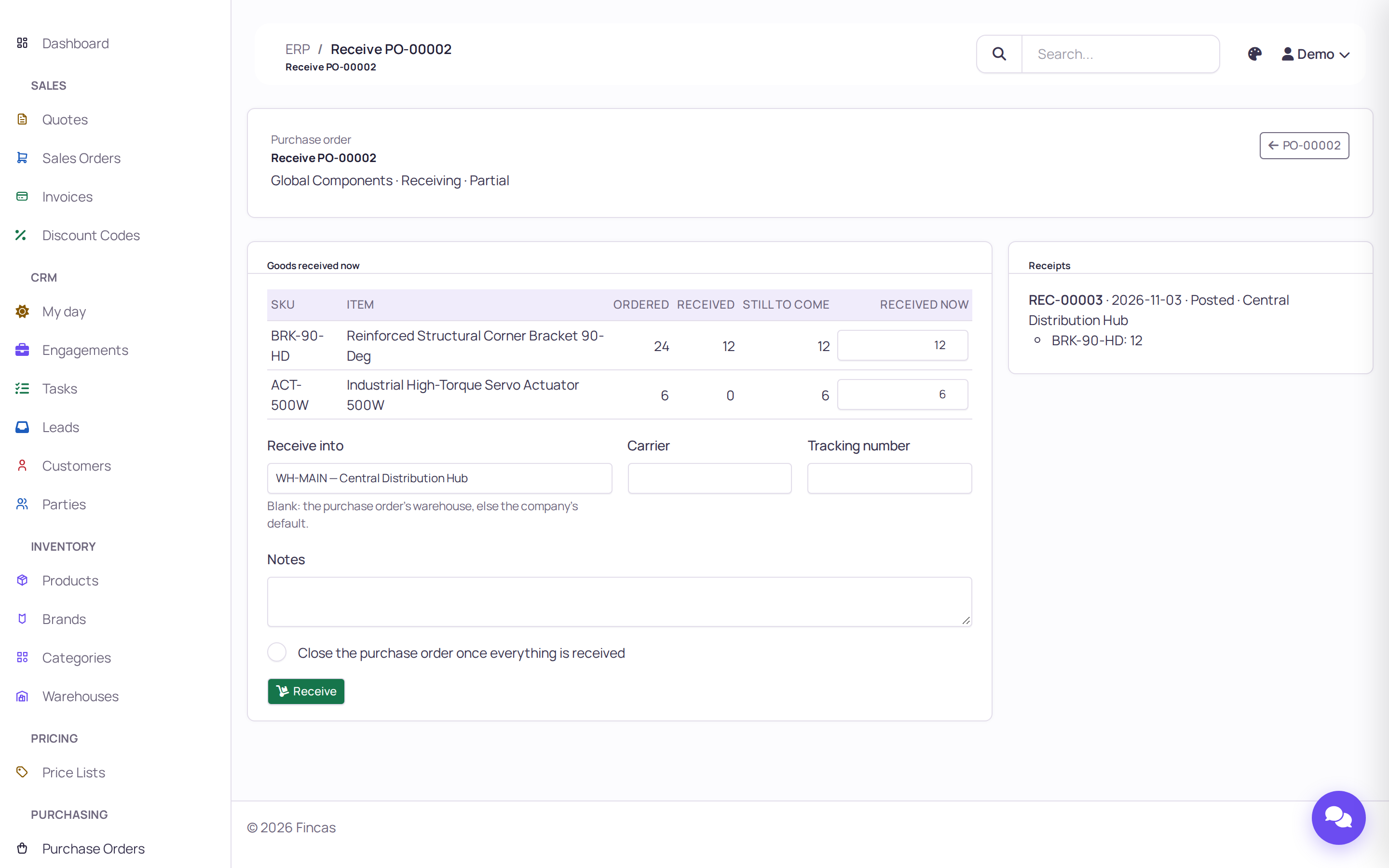
Each receipt gets a number like REC-00003, is listed under Receipts on the right, and
right away:
- adds the received quantities to the warehouse’s stock (and to each variant’s Stock total),
- moves the purchase order to Receiving (some still to come) or Received (all in), or Closed if you ticked the box,
- posts a journal entry: inventory up, accounts payable up, at the line cost. Any landed cost from shipping and other charges posts as a second entry.
A receipt is dated today. You can’t backdate it, and you can’t undo it from the back office.
Buy for a drop-ship shipment on a sales order
Section titled “Buy for a drop-ship shipment on a sales order”A sales order splits its lines into shipments. A shipment set to Drop Ship can generate a purchase order for its lines.
- Open the sales order and save it at least once. A shipment needs to be saved before it can create a purchase order.
- On the shipment, make sure Drop Ship is selected, search for the vendor in Search vendor…, and optionally pick a Ship from location.
- Click Create PO. A new purchase order opens with Po type set to Drop Ship, the supplier filled in, the shipment’s lines copied (quantity and the line’s cost) and the ship-to address copied from the order’s shipping address.
- Review it and click Save. Lines with no linked product can’t be copied; the page names them so you can add them by hand.
Once the purchase order exists, the shipment shows a button with its number in place of Create PO. Click it to open the order.
Pick from your own warehouse
Section titled “Pick from your own warehouse”For a shipment you ship yourself, set it to Internal and print a pick ticket.
- Open the saved sales order. On the shipment, click Internal and choose the warehouse in Ship from warehouse.
- Click Print Pick Ticket. Fincas creates a pick ticket (numbered like
PT-00001) with the shipment’s lines, the bin location from that warehouse’s stock records and the order’s shipping address, and opens it for printing in a new tab. - After that, the shipment shows a button with the ticket number. Click it to open the ticket.
You can also create one from Fulfillment → Pick Tickets → New Pick Ticket. Pick ticket statuses are Created, Assigned, Picking, Picked, Packing, Packed and Shipped. Set them on the ticket as the work progresses. They are a record for the warehouse: they don’t change stock or the sales order’s status.
Shipping rates and labels
Section titled “Shipping rates and labels”The truck button next to Shipping cost on an order opens Shipping Rates, which asks the carriers your deployment has configured for prices from the ship-from warehouse to the order’s shipping address. With no carrier configured, the only option it offers is Will Call / Customer Pickup at $0. It needs a shipping address and lines linked to products, or it shows an error.
The back-office screens don’t buy shipping labels. Whether labels are available, and where, depends on your deployment’s carrier setup.
Check your work
Section titled “Check your work”- Reports → Inventory Levels shows the new on-hand quantity for each SKU you received.
- The product’s variant Stock field shows the total across active warehouses.
- The purchase order’s status in Purchasing → Purchase Orders reads Receiving, Received or Closed, and the Receive screen lists every receipt.
- Accounting → Journal Entries has a Purchase entry for each receipt.
If something goes wrong
Section titled “If something goes wrong”“Not received: … is dated …, in fiscal period …, which is closed.” Today’s date falls in a closed fiscal period. Someone with accounting access has to reopen it under Accounting → Periods before you can receive.
“Not received: No posting rule for purchase_receipt …” The deployment has no posting rule for purchase receipts. Nothing was received. Ask whoever runs your Fincas to set one up (see Accounting).
“Not received: No warehouse to receive into.” The purchase order has no warehouse and the company has no default or incoming warehouse. Pick one in Receive into, or set one up under Inventory → Warehouses.
“… received is more than the … still to come.” You entered more than is left on that line. Receive what the order allows, then add a line or a new purchase order for the extra.
“… is closed; nothing can be received against it.” The order is Closed or Canceled. Create a new purchase order for anything still due.
Stock didn’t go down after shipping an order. That’s expected: shipping doesn’t change stock in Fincas (see How stock changes).
The storefront shows a different number from Inventory Levels. Someone edited the variant’s Stock field by hand. The next receipt for that variant resets it to the warehouse total.
“Please save the order first …” when clicking Create PO or Print Pick Ticket. The shipment is new. Click Save & Continue on the order, then try again.